Mobile Apps
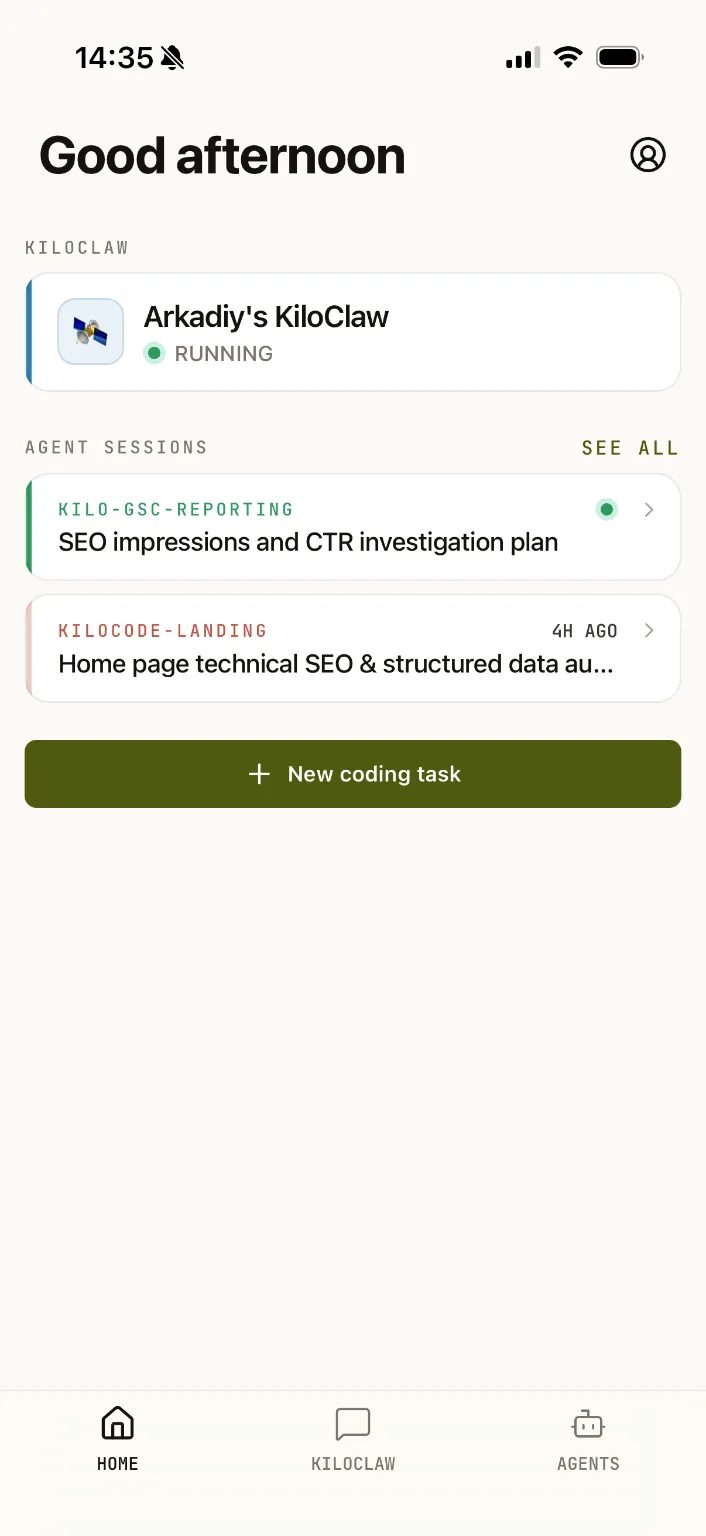
Use Voyager Code from your phone to keep coding sessions moving while you are away from your desk. The mobile app connects to Cloud Agents, VoyagerClaw, and remote sessions from your local CLI or editor extensions.
Install Voyager Code for Android from Google Play.
What you can do
The mobile app lets you:
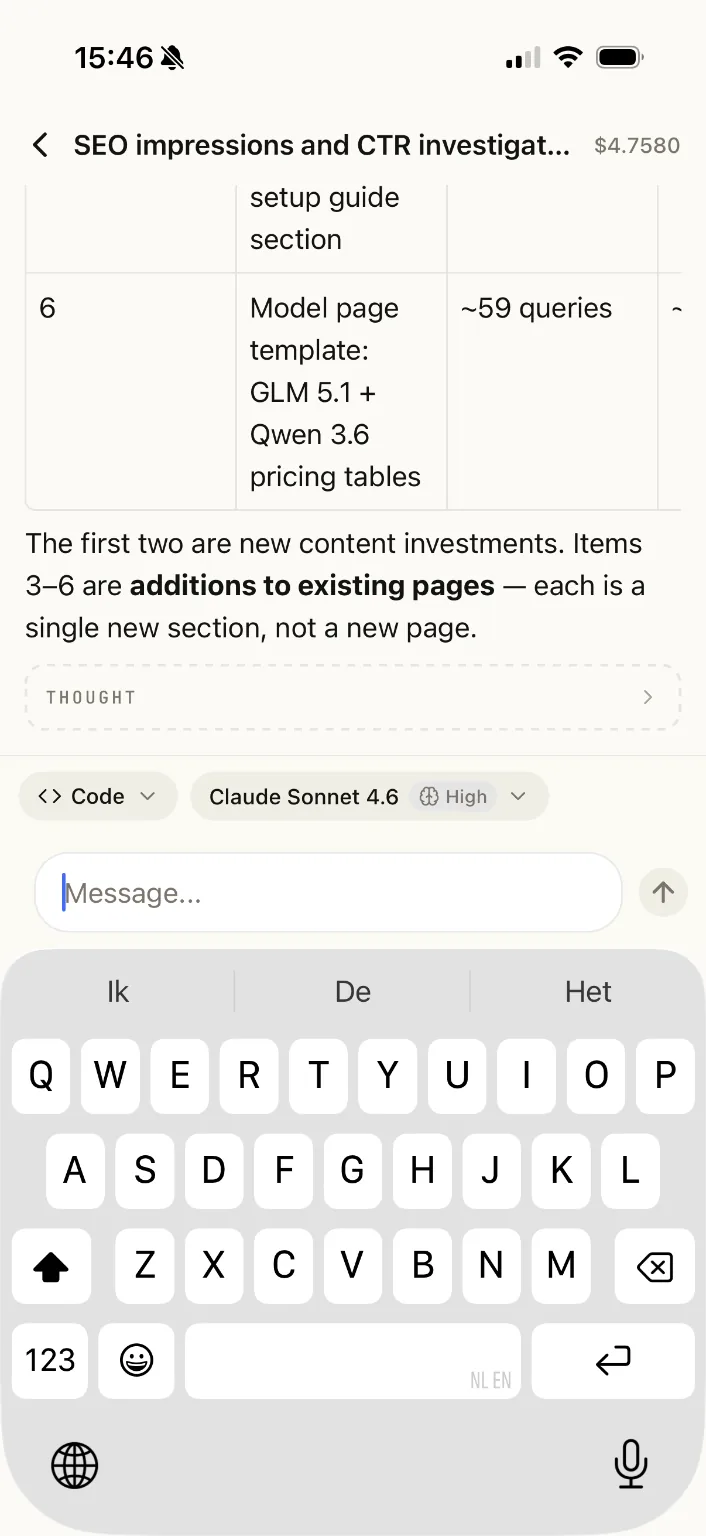
- View and manage Voyager Code sessions, including remote CLI and extension sessions running on your local machine.
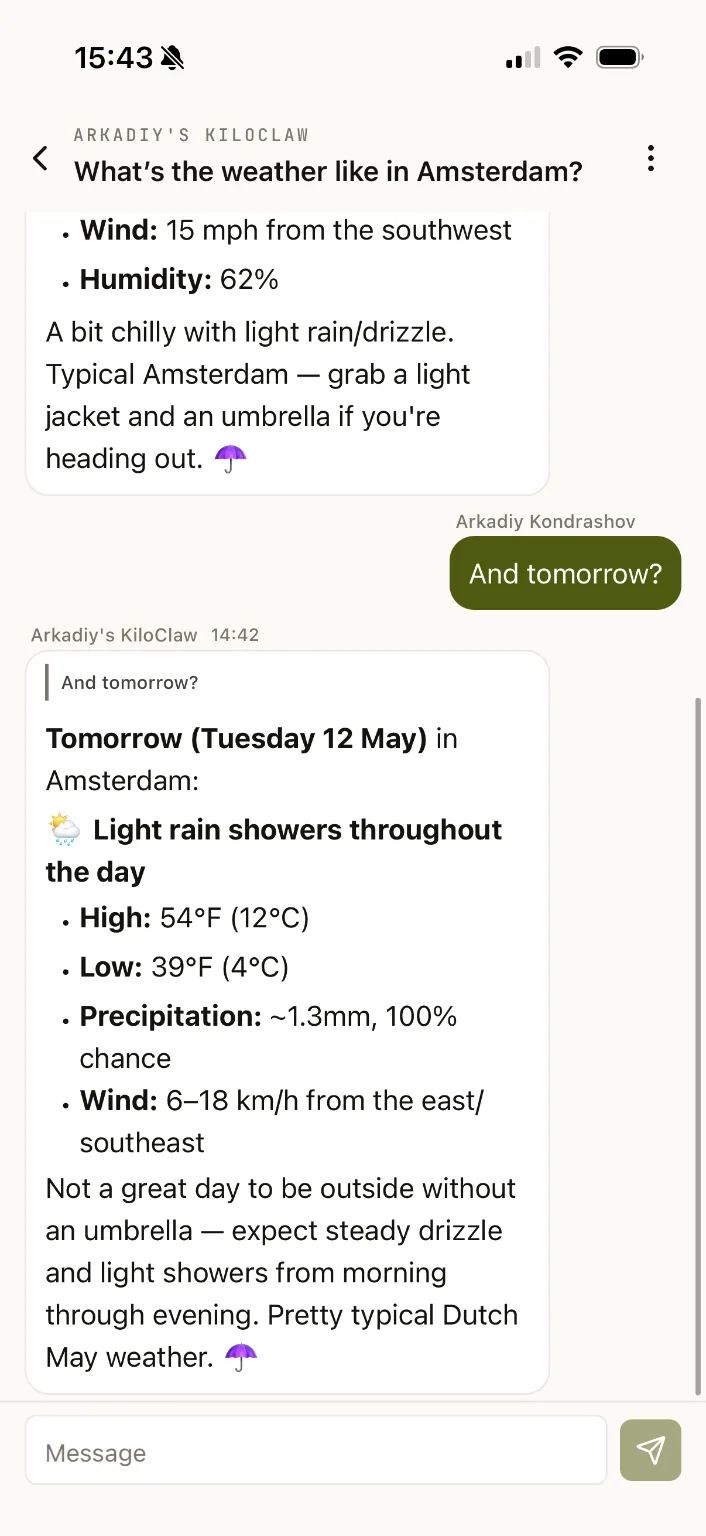
- Chat with VoyagerClaw from your phone.
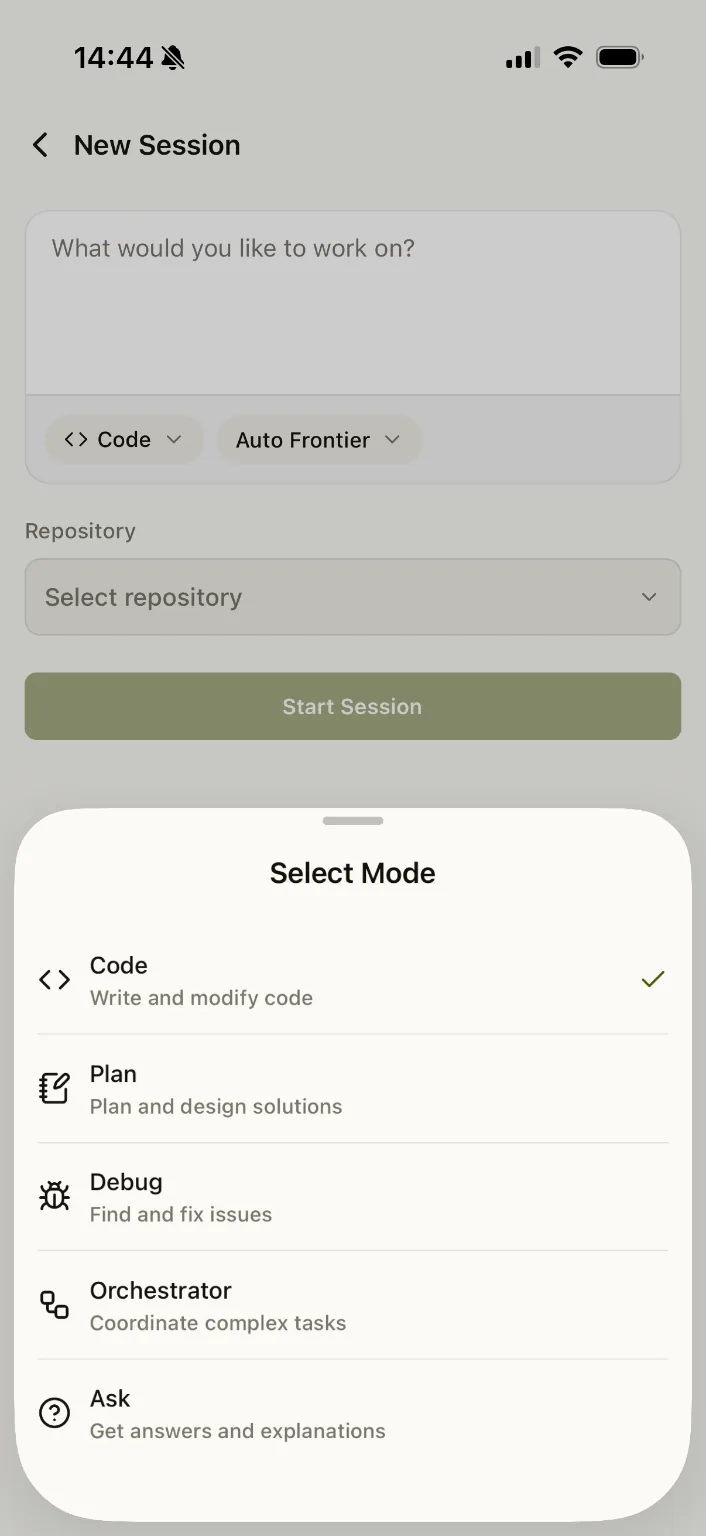
- Spawn Cloud Agents and code directly from the app.
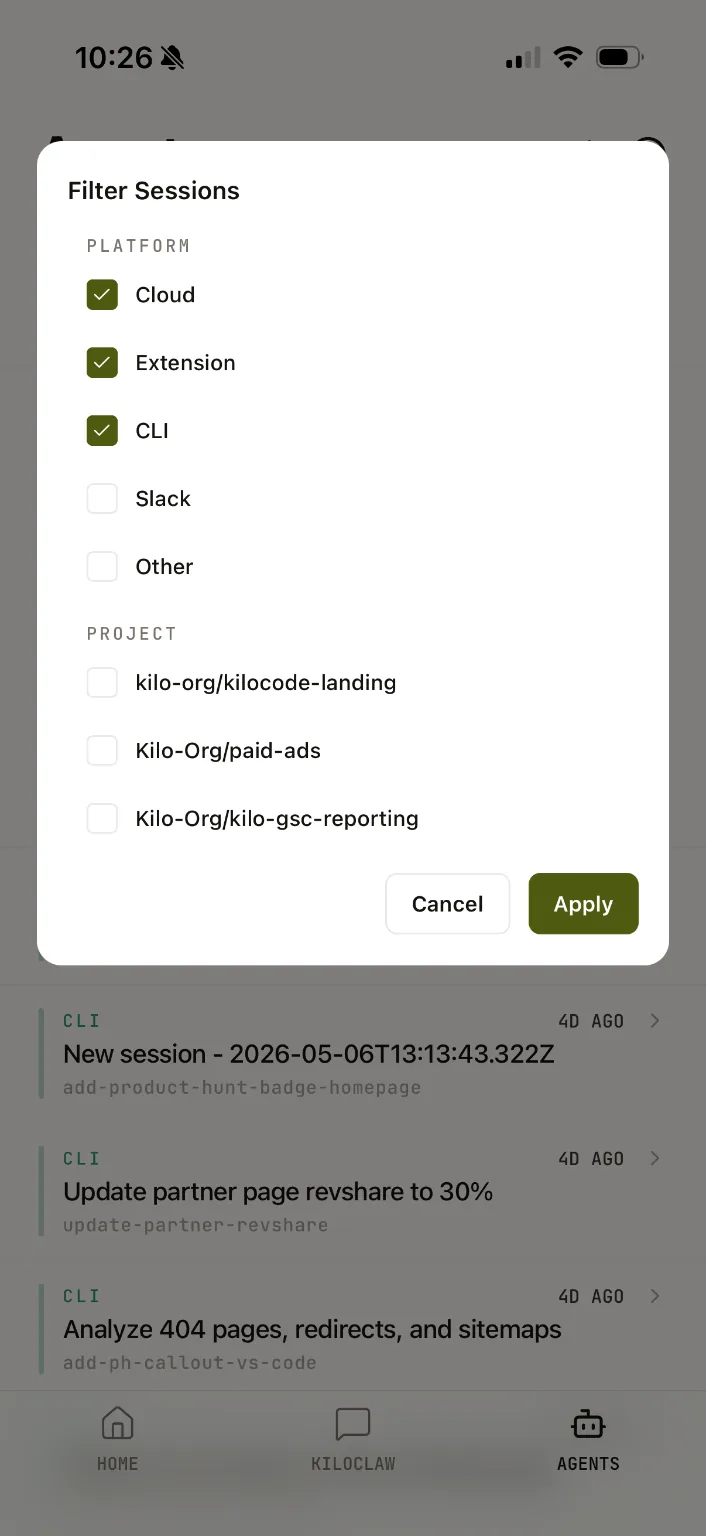
- Monitor and view all non-remote sessions in one place.
- Create, onboard, and manage VoyagerClaw instances.
- Send follow-up messages while a session is still running — they are queued and processed in order.
- Run slash commands (like
/compact) on connected remote CLI sessions, and start a new session in the same workspace with/new. The new session inherits the current session's mode and model. Older CLI versions that do not support remote commands prompt you to upgrade. - Clear the visible transcript of a remote CLI session with
/clear. Clearing is client-side only, so it works on any CLI version; server history is kept and may reappear when you re-enter the session. - Rename a remote CLI session from the app or the CLI — renames sync in both directions.
- Review GitHub pull requests end to end — diffs, checks, comments, and merging.
- Start a new session on a connected
voyager remoteCLI instance with the Run on picker.
Voyager Pass and Billing
For Voyager Pass pricing, billing, and account management details, use the Voyager Pass pricing page.
Choosing where a session runs
The new-session screen includes a Run on picker that chooses where your session runs:
- Cloud Agent — the managed cloud environment (the default).
- A connected CLI instance — a
voyager remoteCLI running on your own machine. The picker lists the instances currently connected to your account.
Remote sessions start with the mode and model selected on the new-session screen; older CLI versions that don't accept those fields fall back to their own defaults. The workspace is always the CLI's own checkout, so there is no repository selection — you type your first prompt in the chat after the session starts. The picker also appears in organization context, where the spawned session is attributed to the organization.
Queueing follow-up messages
The composer stays editable while the agent is working, so you don't have to wait for a session to finish before sending your next message. Type your follow-up and press Send to add it to the session's queue; queued messages are processed in order. While a session is streaming, Stop appears only when the composer is empty — with text entered, Send takes its place.
A queued message shows a subtle Queued badge on its bubble. The badge clears when the message starts processing or when the queue drains or is cancelled. Queueing works for Cloud Agent sessions and for remote sessions on a connected voyager remote CLI instance.
Attachments in remote sessions
When you connect the mobile app to a voyager remote CLI session, you can share files in both directions.
Sending files from your phone to the CLI
Attach up to 5 files (each up to 20 MiB) from your phone to the remote session. The CLI automatically processes them:
- Text, images, and PDFs — the file content is converted to a
data:URL and handed directly to the model as a file part. The model sees the content as if you had loaded it locally. - Other file types (binaries, archives, etc.) — the file is saved to a per-session scratch directory on the CLI machine. The session transcript shows the saved path, filename, file size, and MIME type. The agent can inspect the file with the
readtool for text content or shell utilities for binary content.
Attaching files from the phone is the mobile flow — this is separate from voyager run --file <path>, which attaches local files to a local prompt.
Receiving files from the CLI on your phone
While the CLI is connected, the agent can deliver a file to your phone with the send_file tool (up to 4 MiB, remote sessions only). The file appears as a chip on the tool card — tap the chip to open the share sheet and save or forward the file. This tool works only when voyager remote is actively connected; it is not available in Cloud Agent sessions.
Reviewing GitHub pull requests
Open a pull request from a PR link to review it without leaving the app:
- Overview — PR state and CI checks at a glance.
- Files — syntax-highlighted diffs with line-level comments and a file navigator.
- Discussion — review threads with replies, resolve/unresolve, and reactions.
Comments you leave are collected into a pending review on your device and submitted to GitHub as a single review. When the PR is ready, you can merge it (merge, squash, or rebase), enable or disable auto-merge, or update the branch — all from the app.
PR review uses your connected GitHub account; the app asks you to connect GitHub if you have not already.
Session cost and model details
The app shows what each session cost and which models did the work:
- Session list — a finished session with a recorded cost shows it in the row's meta line (for example,
$0.12 · 5m ago). Sessions that are still running or have no cost show no cost. - Cost breakdown — open a session's Context usage sheet to see a Token usage section (input, output, reasoning, cache read, and cache write tokens, plus the cache hit rate) and a collapsible Models section with each model's name, provider, step count, and cost. A Subagents row covers any remaining spend, so the per-model costs always add up to the session total.
- Per-message model label — assistant messages show a dimmed model label on the first assistant reply and whenever the model changes during the session. Turns routed by Auto Model show the concrete model that handled the turn.
Cost is recorded when a session closes; sessions that closed before this feature shipped do not show a cost.
Android App
The Android app is available now on Google Play.
iOS App
The iOS app is in review with the App Store team and will be available soon. You can already sign up for the iOS waitlist to be notified when it launches.