VoyagerClaw 🦀
VoyagerClaw is Voyager's hosted OpenClaw service — a one-click deployment that gives you a personal or organization-scoped AI agent without the complexity of self-hosting. OpenClaw is a 24/7, open source AI agent that connects to Voyager Chat and optional chat platforms like Telegram, Discord, and Slack so it can take real actions automatically, not just chat.
VoyagerClaw is powered by Voyager Code. The API key is platform-managed, so you never need to bring your own.
Why VoyagerClaw?
- No infrastructure setup — Skip Docker, servers, and configuration files
- Instant provisioning — Your agent is ready in seconds
- Voyager Chat included — Use the first-party Voyager Chat channel without token setup
- Powered by Voyager Code — API key is automatically generated and refreshed
- Uses existing credits — Runs on your Voyager Gateway balance
- Multiple free models — Choose from several models at no additional cost
- Web UI included — Access your agent's web interface directly from the dashboard
Prerequisites
- Voyager account — Sign up at vgercode.com if you haven't already
- Model access — VoyagerClaw uses Voyager Gateway by default, which provides access to 500+ AI models through a single integration.
Depending on your setup, you can also use:
- Your own provider API keys (BYOK) such as Anthropic, OpenAI, Google, or other supported providers.
- Organization access if your organization has VoyagerClaw enabled and you want the instance scoped to that organization.
Creating an Instance
- Navigate to your Voyager profile
- Click Claw in the left navigation
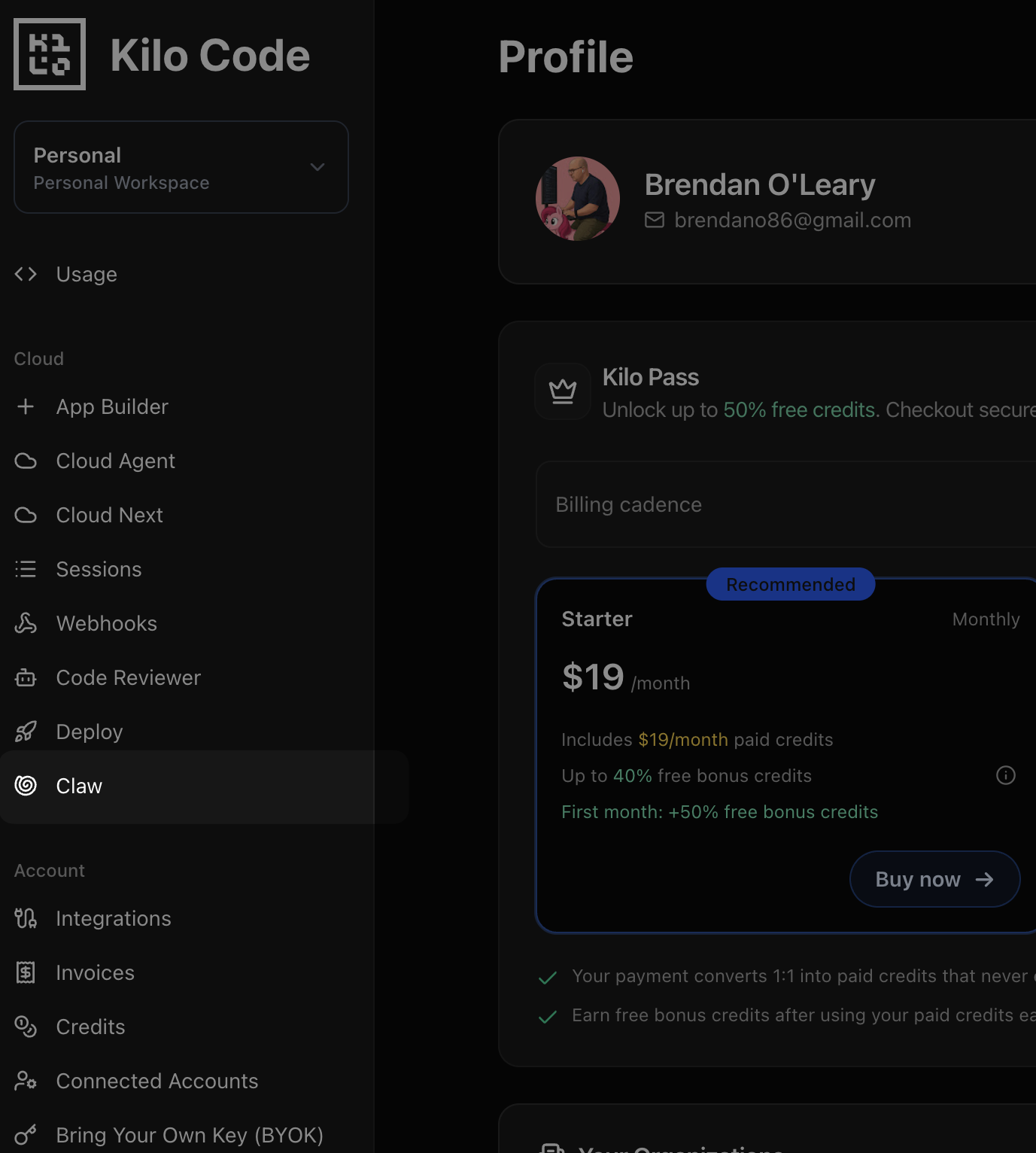
- Click Create Instance
- Your instance will use Voyager Auto Balanced as the default model. You can optionally select a different model from the dropdown — see all available models at the Voyager Leaderboard.
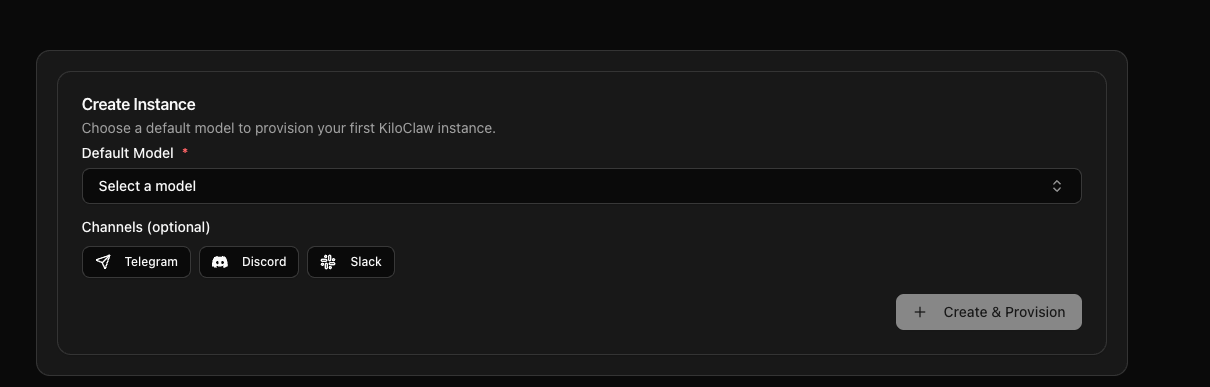
- Optionally configure third-party chat channels (Telegram, Discord, Slack) — Voyager Chat is already available, and you can add other channels later from Settings
- Click Create & Provision
Your instance will be provisioned in seconds. Each instance runs on a dedicated machine with 2 shared vCPUs, 3 GB RAM, and a 10 GB persistent SSD. Once created in a region, your instance always runs there.
Organization VoyagerClaw
If your organization has VoyagerClaw enabled, you can use an organization-scoped instance for work that belongs to that organization. The core VoyagerClaw experience is the same as a personal instance, with these differences:
- Organization instances are separated from your Personal instance in VoyagerClaw lists.
- Provisioning depends on your organization membership and the organization's VoyagerClaw entitlement.
- Instance ownership and routing are scoped to the organization, so use organization-approved accounts and credentials for connected services.
Managing Your Instance
The VoyagerClaw dashboard gives you full control over your instance.
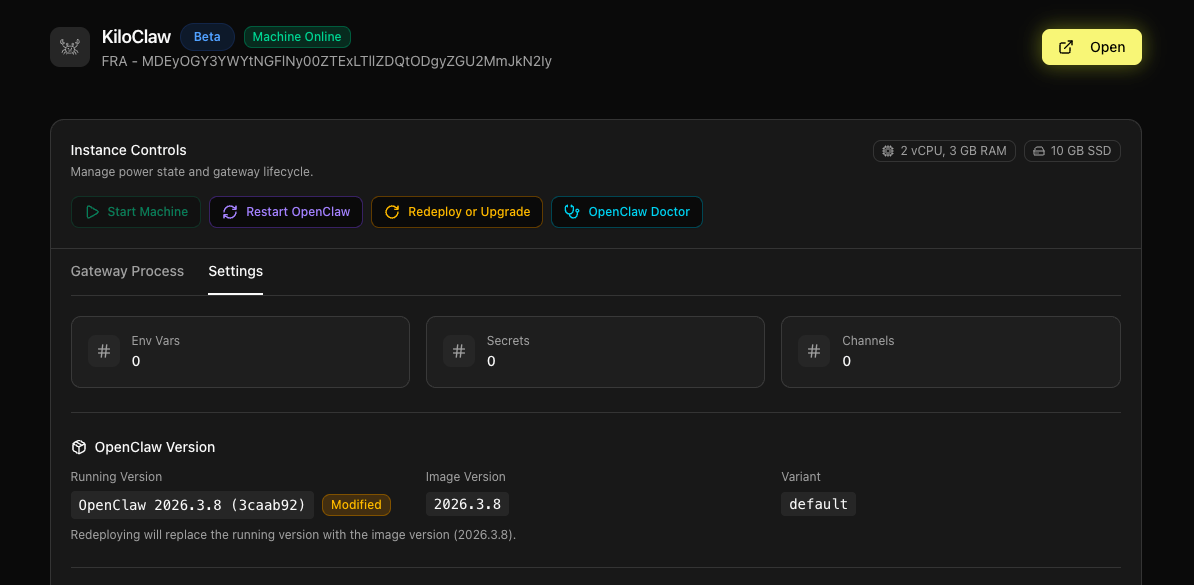
Controls
- Start Machine — Boot a stopped instance (up to 60 seconds)
- Restart OpenClaw — Quick restart of just the OpenClaw process; the machine stays up
- Redeploy — This will stop the machine, apply any pending image or config updates, and restart it. The machine will be briefly offline.
- OpenClaw Doctor — Run diagnostics and auto-fix common issues
For full details on each control and when to use them, see the Dashboard Reference.
Changelog
The dashboard shows recent platform updates. Some updates include a deploy hint — either Redeploy Required or Redeploy Suggested — to let you know when to redeploy your instance.
Pairing Requests
When you initialize a new channel for the first time, or a new device connects to the Control UI, you'll see a pairing request on the dashboard that you need to approve. See Pairing Requests for details.
Accessing Your Agent
- Click Open on your dashboard to launch the OpenClaw web interface
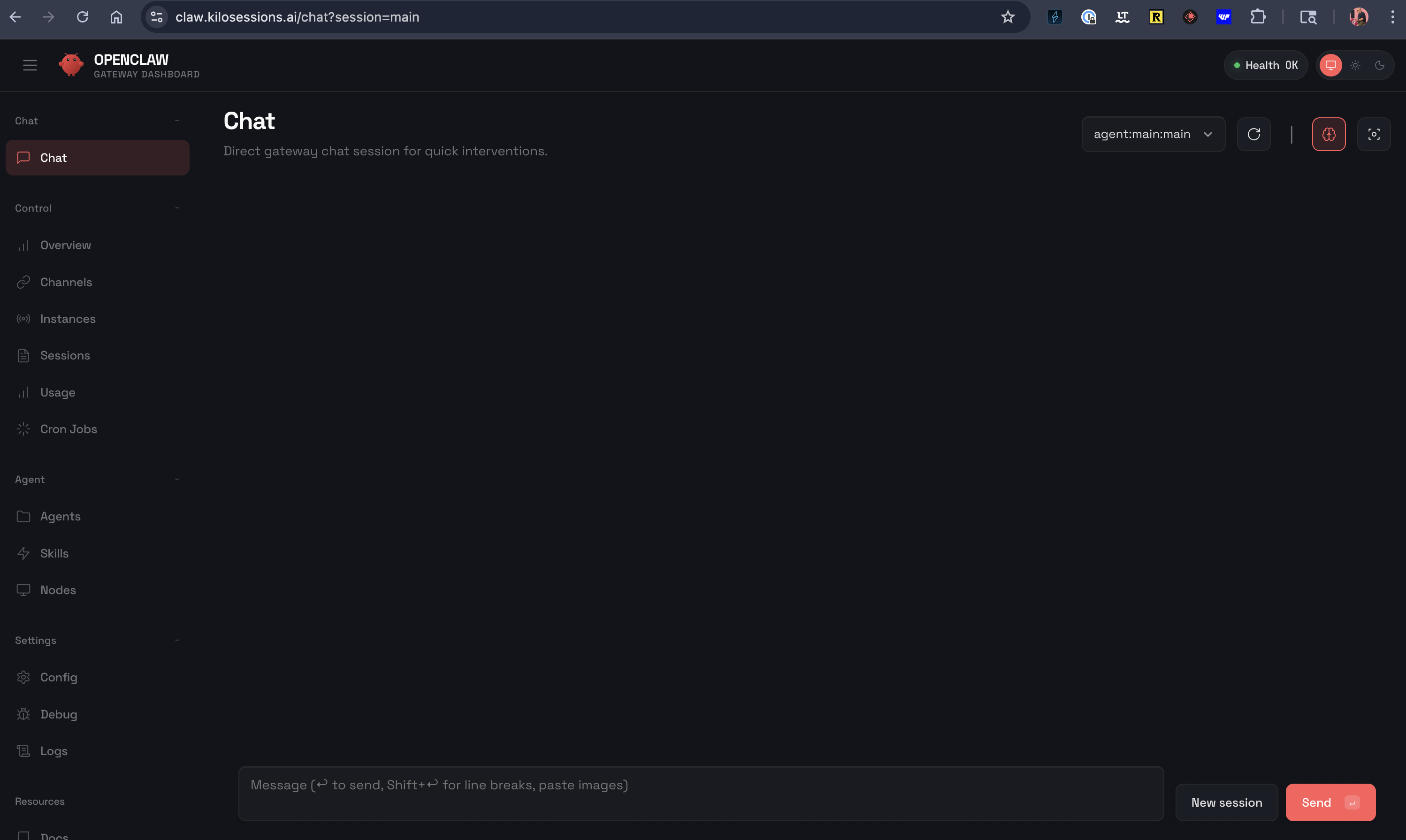
Using your OpenClaw Agent
OpenClaw lets you customize your own AI assistant that can actually take action — check your email, manage your calendar, control smart devices, browse the web, and message you through Voyager Chat or connected third-party channels when something needs attention. It's like having a personal assistant that runs 24/7, with the skills and access you choose to give it.
Browser Tool
VoyagerClaw includes a headless Chromium browser, enabling your agent to browse the web, take screenshots, and automate web interactions using the OpenClaw browser tool. This works out of the box with the "full" tool profile — no additional setup needed.
Default Tool Profile
New VoyagerClaw instances deploy with the full tool profile by default, giving your agent unrestricted access to all available tools — filesystem operations, shell execution, web search, browser automation, messaging, memory, sub-agents, and more.
For more information on use cases:
- OpenClaw Showcase
- 100 hours of OpenClaw in 35 Minutes
- Clawhub: search for skills